1. Export FBX
1.1 Gun body
- In Blender, switch to Object Mode
- Select the armature object and the "body" mesh
- Go to File > Export > FBX
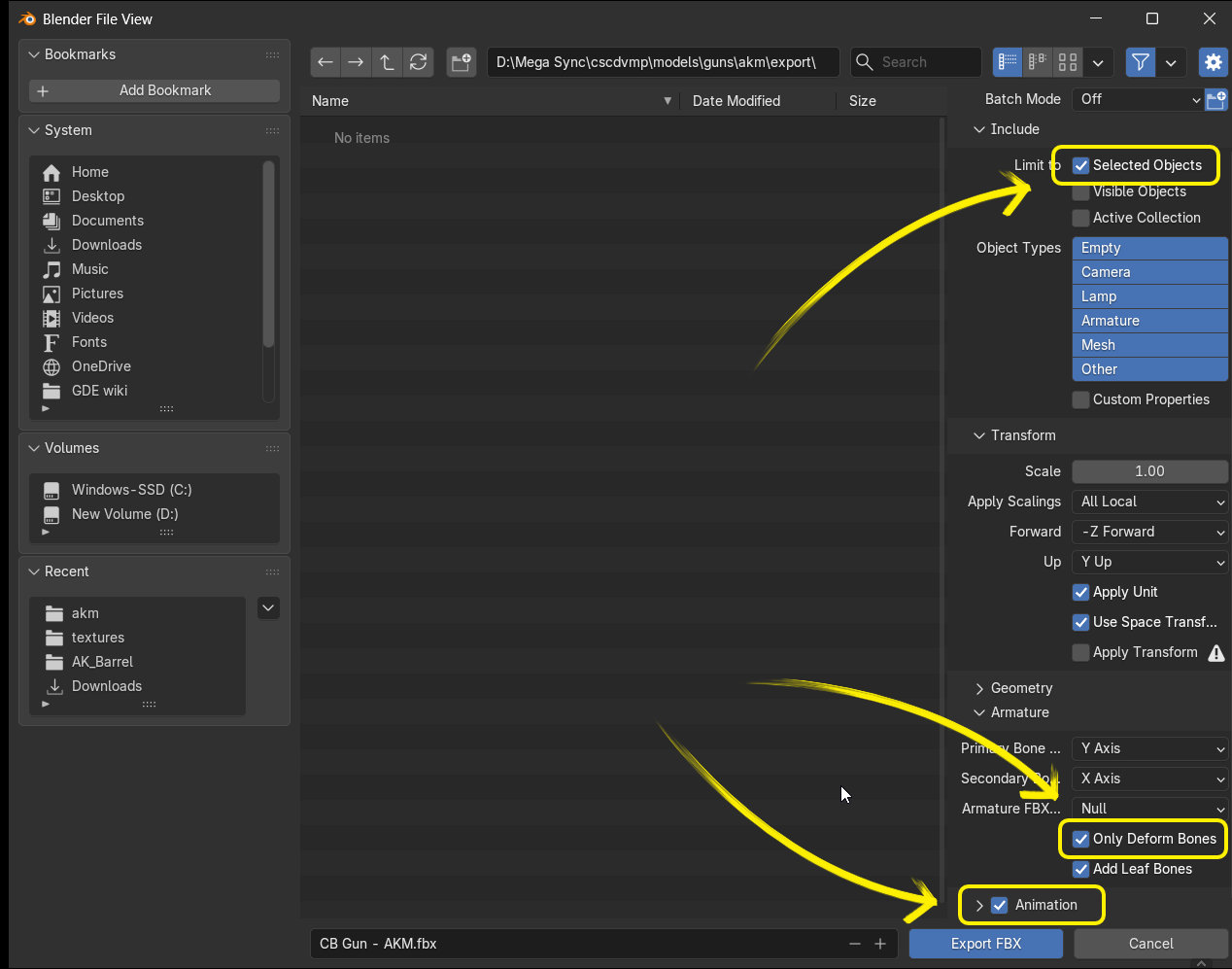
- In the save dialog, make sure the following options are checked > click "Export FBX"
Tip
The "Only Deform Bones" option isn't strictly necessary here, since the CB Gun's bone setup is quite simple, but it's still a good habit to keep.
A note about exporting related to animation:
- In the FBX export dialog above, expand the Animation section and you'll see two options: NLA Strips and All Actions.
- Leaving both checked can sometimes produce duplicate animations when imported into the engine, one of which will appear in the form "armature name"|"animation name".
- To avoid this, the best approach is to open Blender's NLA editor and push down all the animations you need onto the armature object.
- When exporting FBX, uncheck All Actions (keep only NLA Strips) — the resulting fbx file will then only contain the animations present in the NLA.
1.2 Magazine
- Select the "mag" mesh object
- Move the object to the world origin (Alt + G)
- Export it the same way as the "body" mesh object. You can name these fbx files however you like, as long as it's convenient
Note
Moving an object to the world origin is very important, as it affects the object's origin in-game. Once the "mag" object is imported into GDE, it will be repositioned correctly, so you don't need to worry about it being offset from the "body" model.
1.3 Hand model
- In Object Mode, select both the armature and mesh of the CB Hand.
- Export FBX the same way you did for the CB Gun model and magazine.
- This time, the "Only Deform Bones" option really matters, since the CB Hand's armature also contains control bones — if this option is left unchecked, the entire bone hierarchy will be exported, causing unwanted issues.
2. Importing into GDE
Since GDE is an application built on the Titan Engine, it needs to be run from the Engine to be used. Before that, we need to import and configure the objects we prepared above.
2.1 Import steps
Importing objects (which can now be called assets) into the engine is simple — just drag and drop the fbx files into the asset browser and everything happens automatically. What you need to do next is organize these assets in a sensible, memorable way for future adjustments.
- First, create a new folder in the engine by right-clicking the list on the left > New > Folder, and naming the folder, e.g. "akm".
- Then create another folder inside it, named "code-based".
- Finally, drag and drop all 3 exported fbx files into this folder.
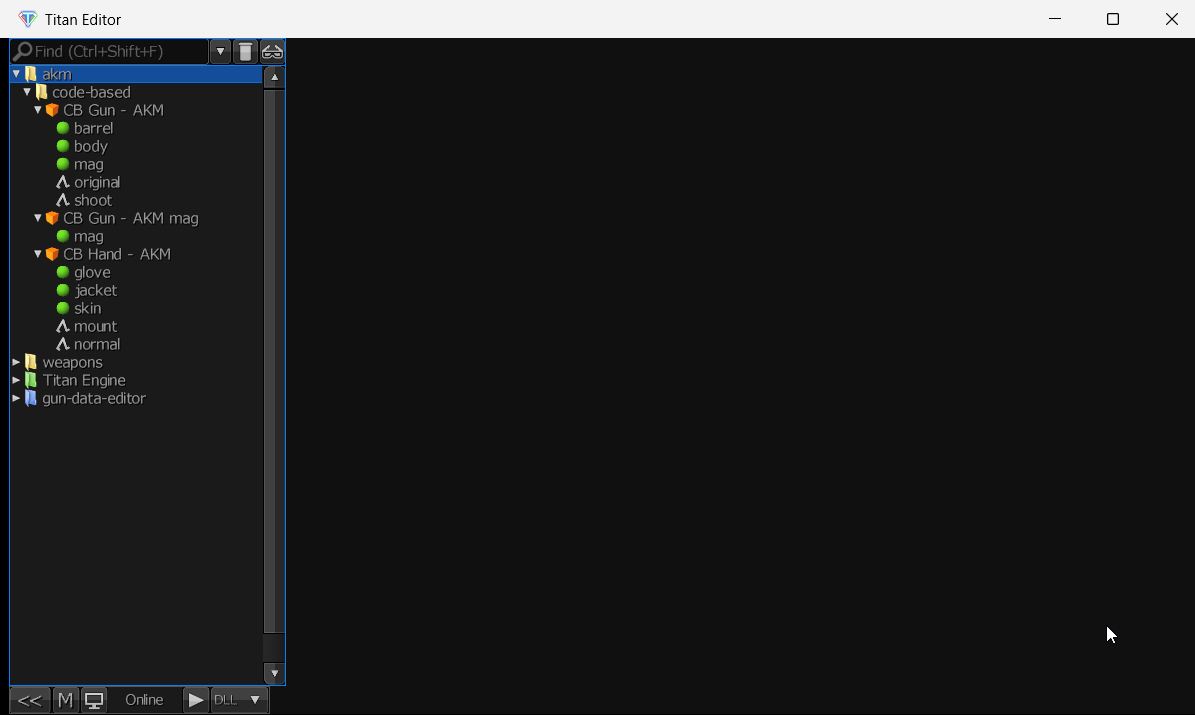
Once imported successfully, the assets in the engine will be organized as shown below.
2.2 Adding other object elements
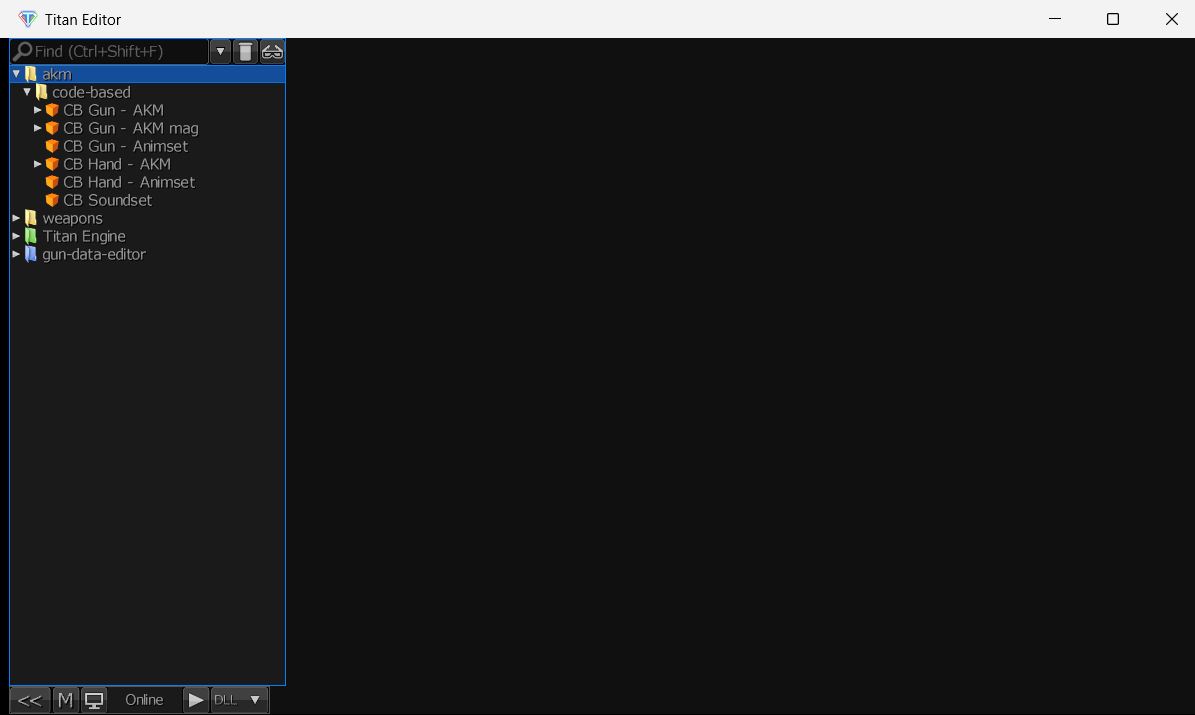
We'll create 3 more new object elements: right-click the "code-based" folder > New > Object > name it.
For each object element, name them as follows:
- "CB Gun - Animset": Provides the animation parameters for CB Gun.
- "CB Hand - Animset": Provides the animation parameters for CB Hand.
- "CB Soundset": Provides the sound parameters for the CB flow.
3. Data setup
For each object element you've created, double-click to open the corresponding object editor > go to the Params tab > follow the steps below for each object:
3.1 CB Gun - AKM
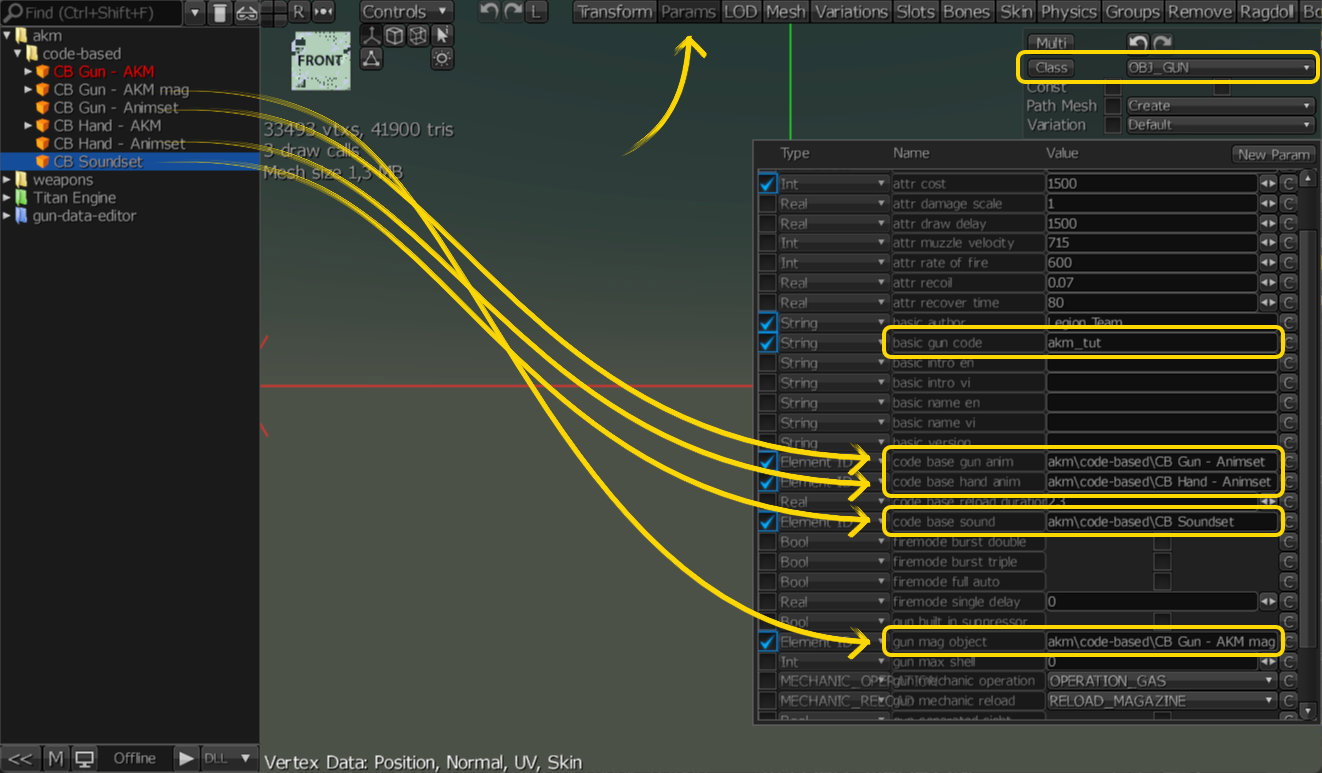
- Under Class > select OBJ_GUN
- The list of parameters for the AKM gun model asset itself will appear. See Gun Data Structure for details on each parameter.
- Enter the "basic gun code"
- Drag and drop the object elements you created into their corresponding parameter slots, one by one.
3.2 CB Gun - AKM mag
- Under Class > select OBJ_MAGAZINE
- Enter all the parameters for the magazine. See Magazine Data Structure for details on each parameter.
- For the "thumbnail image" parameter slot, follow the Creating a Thumbnail for CB Gun and Mag guide.
- Once you have the thumbnail image, drag and drop the image file (png) so it becomes a child of the "CB Gun - AKM mag" object element > rename it "akm-mag-thumbnail" (optional).
- Drag that "akm-mag-thumbnail" object into the "thumbnail image" parameter slot.
3.3 CB Gun - Animset
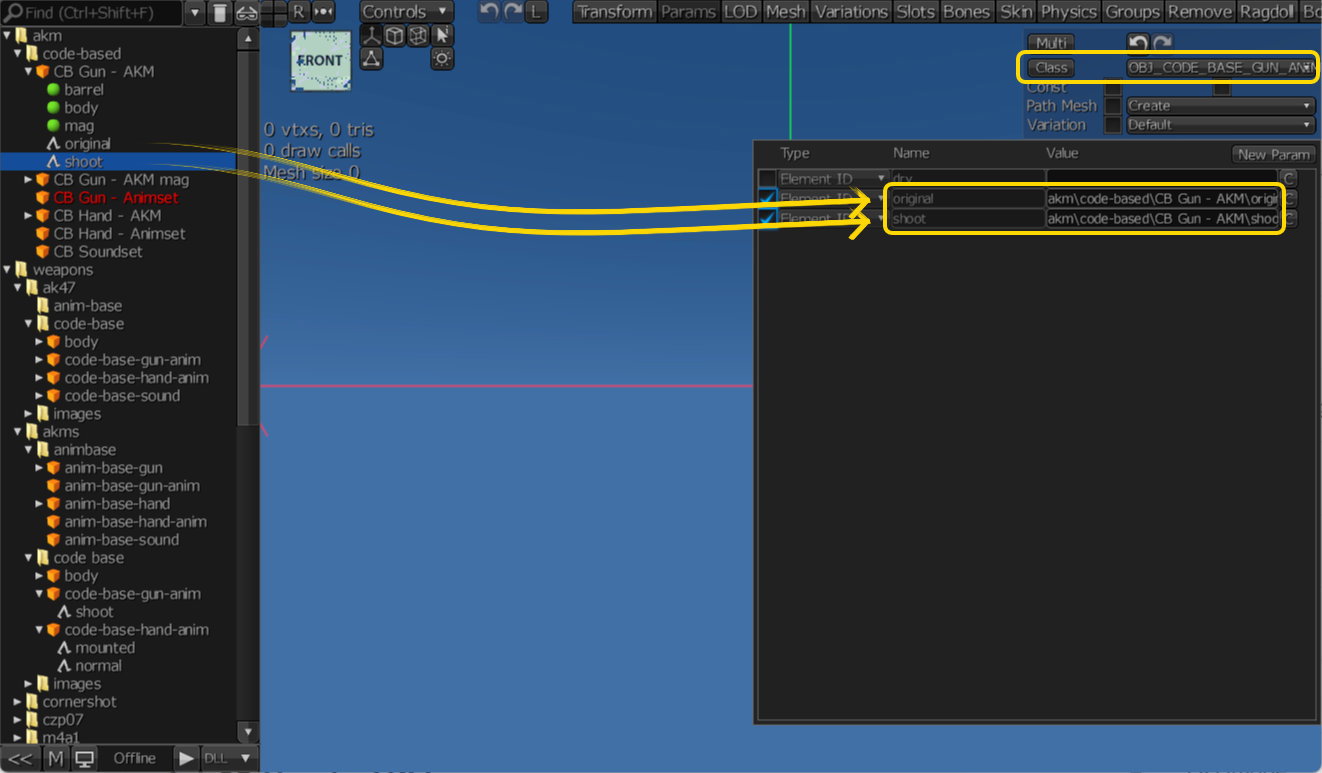
- Under Class > select OBJ_CODE_BASE_GUN_ANIM
- Drag and drop the animations belonging to "CB Gun - AKM" into the corresponding slots of "CB Gun - Animset"
3.4 CB Hand - AKM
- Under Class > select OBJ_HAND
- The class chosen for the "CB Hand - AKM" object element is only symbolic and doesn't affect how GDE operates.
- In the future, the development team will allow users to use their own CB Hand.
Note
The purpose of importing CB Hand into the engine is mainly to quickly and automatically obtain 2 animation elements (normal and mount pose).
You could instead create an animation element > point it to the fbx file containing the animation > enter the animation name > finish the import. However, this approach isn't as fast as importing the whole hand model.
3.5 CB Hand - Animset
- Under Class > select OBJ_CODE_BASE_HAND_ANIM
- Drag and drop the animations belonging to "CB Hand - AKM" into the corresponding slots of "CB Hand - Animset"
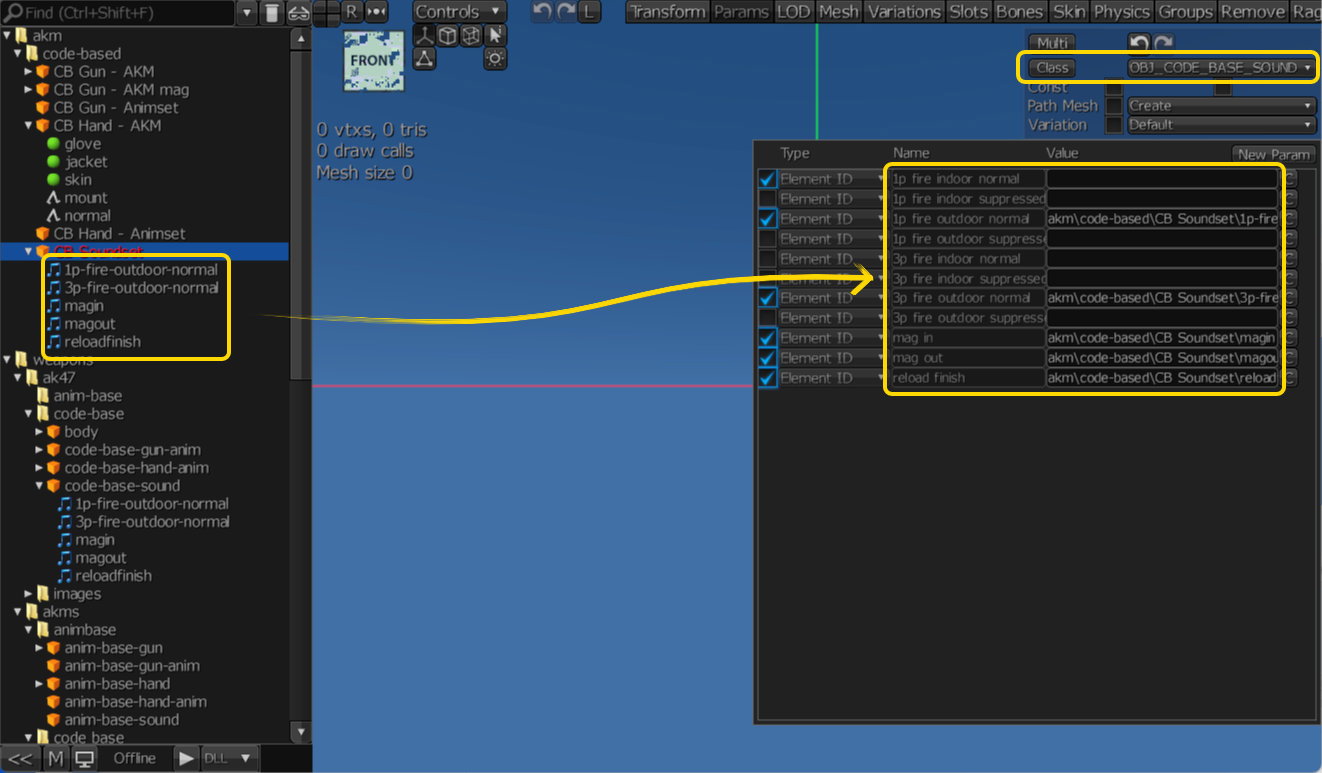
3.6 CB Soundset
- Under Class > select OBJ_CODE_BASE_SOUND
- Import the sound files needed for the CB flow into the Engine, placed inside the "CB Soundset" object element. These sound files must follow the CB/AB Sound File Standard.
- Drag and drop each sound element into its corresponding parameter slot.
Warning
Preparing a full set of high-quality sounds that truly convey a gun's power requires either a skilled sound editor or a good sound library — for the scope of this guide, only a minimal set of sound elements will be used for illustration.